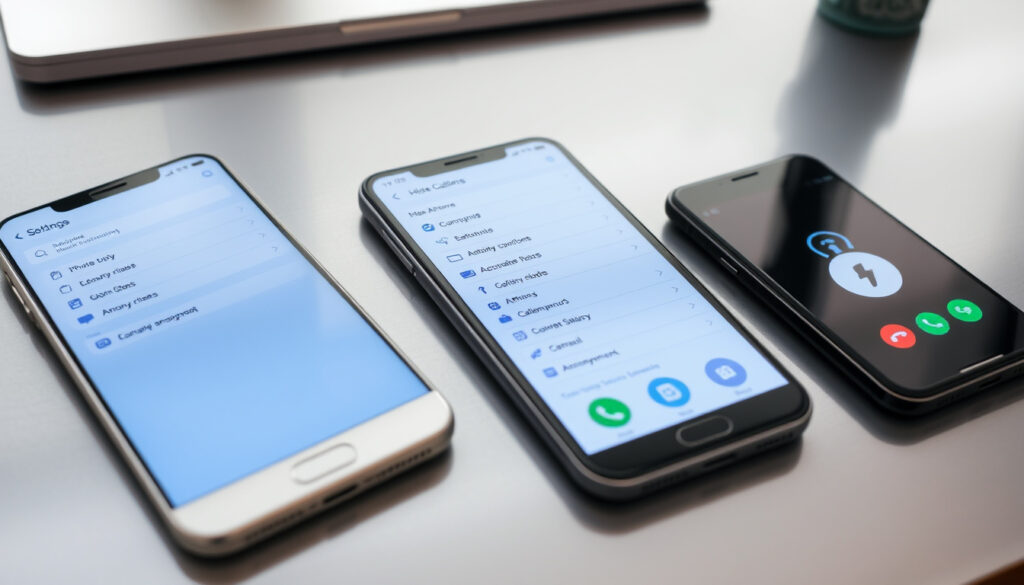
How to Turn On No Caller ID: iPhone, Samsung, Android
Ever tried to call someone and wished your number wouldn’t show up? Whether you’re protecting your privacy or just want to make a one-off call without revealing yourself, hiding your caller ID is easier than most people think—and you probably already have the tools on your phone right now.
Primary methods: 2 (*67 code, device settings) · Devices covered: iPhone, Samsung, Android, Pixel · *67 compatibility: Works on most carriers including iPhone · Official sources: Apple Support, Samsung Support
Quick snapshot
- *67 blocks caller ID on iPhone, Android, and Samsung devices (AMBS Call Center)
- Apple’s Show My Caller ID toggle hides your number permanently for all calls (AMBS Call Center)
- Ireland carrier support varies—some networks may restrict caller ID hiding entirely (Samsung Ireland Support)
- iPhone’s Silence Unknown Callers feature doesn’t block all unknown callers, especially those on your recent calls list (AirDroid)
- Android 10 (2019) introduced native unidentified caller blocking—earlier versions lack this feature (Gini Help Blog)
- iOS 13+ includes the Silence Unknown Callers toggle on iPhone (AirDroid)
- Carrier-level caller ID blocking ($2–5/month) provides the most reliable, permanent solution across all calls (AMBS Call Center)
- Some carriers remove the Show My Caller ID toggle from iPhone settings—contact customer service if the option is missing (AMBS Call Center)
Three main paths exist to hide your caller ID, and they differ in permanence and scope.
| Method | Path / Code | Scope |
|---|---|---|
| Universal code | *67 before dialing | Single call |
| iPhone | Settings > Phone > Show My Caller ID | All calls |
| Samsung | Phone > 3 dots > Settings > Supplementary services > Show your caller ID | All calls |
| Google Pixel | Phone > Settings > Calls > Additional settings > Caller ID | All calls |
| Carrier-level | Contact customer service | All calls |
How do I activate no caller ID?
The quickest way to hide your caller ID for one specific call is to dial *67 before entering the number. This works on virtually any phone—iPhone, Android, or landline (AMBS Call Center). The recipient will see “Private,” “Unknown,” or “No Caller ID” instead of your number.
Using *67 code
- Open your phone’s dialer
- Press *67
- Dial the full phone number you want to reach
- Your caller ID stays hidden for that call only
This method works in the US and Canada for both mobile and landline phones (AMBS Call Center). International compatibility varies by carrier and country—check with your service provider if you’re outside North America.
*67 hides your number for one call only. Dial a different number? You’ll need to enter *67 again. For permanent caller ID hiding, use your phone’s settings or carrier services instead.
Carrier-specific options
All major phone carriers can apply caller ID blocking at the account level. Call customer service and ask for “caller ID blocking” or “anonymous calling” (AMBS Call Center). This typically costs $2–5 per month and cannot be accidentally turned off, making it the most reliable option if you need privacy on every outgoing call.
All major phone carriers can apply caller ID blocking at your account level. Call customer service and ask for “caller ID blocking” or “anonymous calling.”
— AMBS Call Center
The implication: carrier-level blocking is worth the monthly fee if your job or personal safety depends on keeping your number private.
The trade-off: *67 is free but requires a prefix before each call; carrier-level blocking costs $2–5/month but applies automatically to every outgoing call.
How do I hide my caller ID on my iPhone?
iPhone offers a built-in toggle that hides your caller ID for all outgoing calls. Navigate to Settings > Phone > Show My Caller ID and flip it off (AMBS Call Center). Once disabled, every call you make shows as private or unknown to the recipient.
Settings app path
- Open Settings
- Tap Phone
- Find Show My Caller ID
- Toggle it Off
Some carriers remove the Show My Caller ID toggle from iPhone settings entirely. If you don’t see this option under Settings > Phone, your carrier controls this feature—contact them directly to enable caller ID blocking (AMBS Call Center).
iPhone 15 and iPhone 16 compatibility
The Settings > Phone > Show My Caller ID path remains consistent across iPhone 15 and iPhone 16 models running iOS 17 and later. Both models use the same Settings architecture, so the steps above apply without variation. If the toggle is missing, check with your carrier—some regional variants may not offer this setting.
Some carriers remove this toggle from iPhone settings. If you don’t see the “Show My Caller ID” option, your carrier controls this feature.
— AMBS Call Center
What this means: iPhone’s native caller ID hiding is carrier-dependent, not universal. The presence or absence of the toggle tells you whether your network allows this feature at the device level.
Does *67 still show no caller ID?
Yes—dialing *67 before a number still reliably hides your caller ID on modern smartphones, including iPhone and Android devices (AMBS Call Center). When someone receives a call from a *67-prefixed number, their phone typically displays “Private,” “Unknown,” or “No Caller ID” depending on their carrier and device.
Works on iPhone?
*67 works on iPhone exactly as it does on Android and landline phones. Open the Phone app, enter *67, then dial the full number. Your ID stays hidden for that specific call. There is no carrier restriction on iPhone for this feature—it operates independently of your carrier’s network settings.
*67 does not work when calling 911 or most toll-free numbers. Emergency services and certain business lines may override caller ID blocking for safety or technical reasons.
Carrier limitations
The feature is designed for standard voice calls within North America. Some network carriers and countries do not allow caller ID hiding at all—Samsung Ireland Support notes that if you’ve followed the steps and your number still shows, your mobile network may not support this feature. International travelers should check with their carrier before relying on *67 abroad.
Some network carriers and countries do not allow you to hide your number. If you have followed all the below steps and your number is still showing, you should check with your mobile network if they allow this feature.
The pattern: *67 works reliably where carriers support it, but it is not a global guarantee. Regional restrictions exist, and emergency numbers are always excluded.
How do I turn my Caller ID off?
On Android devices, the path to hiding your caller ID varies slightly depending on your phone manufacturer, but the underlying setting is always accessible through the Phone app’s settings menu.
Samsung steps
- Open the Phone app
- Tap the three dots (More options)
- Select Settings
- Tap Supplementary services
- Tap Show your caller ID
- Choose Never (Samsung Ireland Support)
Samsung’s Show your caller ID setting offers three options: Network default, Never, or Always (Samsung Ireland Support). “Never” ensures your number never displays; “Network default” lets your SIM provider control this; “Always” forces your number to display on every call.
Google Pixel steps
- Open the Phone app
- Tap the three-dot menu
- Select Settings
- Navigate to Calls > Additional settings
- Tap Caller ID
- Select Hide number (Gini Help Blog)
The exact wording for caller ID settings varies by Android phone manufacturer. Some say “Hide number,” others say “Show caller ID” with an Off option. Both achieve the same result—find the closest match in your device’s settings menu.
The trade-off: device-level settings work reliably but can be accidentally changed. Carrier-level blocking ($2–5/month) cannot be accidentally disabled, making it preferable for users who need consistent privacy.
How to turn on no caller ID on Samsung?
Samsung Galaxy phones provide a dedicated path for caller ID control through their supplementary services menu. This method applies to Galaxy S and Galaxy A series devices running Android 10 and later.
Hide Caller ID setting
- Open the Phone app
- Tap three dots in the top-right corner
- Go to Settings
- Select Supplementary services
- Tap Show your caller ID
- Choose Never (Samsung Ireland Support)
On older Android versions, the path differs slightly: Phone app > More options > Settings/Call Settings > More/Supplementary settings (Samsung Ireland Support). Samsung’s consistent inclusion of “Supplementary services” in their settings architecture makes this feature easier to locate than on stock Android devices.
Additional devices like Pixel
Google Pixel phones follow a different path: Phone app > Settings > Calls > Additional settings > Caller ID > Hide number (Gini Help Blog). Unlike Samsung’s dedicated supplementary services menu, Pixel integrates caller ID control under the broader Calls settings category. Android 10 and later includes a native feature to block caller ID from unidentified sources—this works in conjunction with, but is separate from, hiding your own outgoing caller ID.
On older versions of Android, caller ID settings can usually be found in Phone app > More options > Settings/Call Settings > More/Supplementary settings.
— Samsung Ireland Support
The implication: Samsung and Pixel users have equivalent capabilities but different menu architectures. Samsung’s explicit “Never” option is more intuitive, while Pixel’s “Hide number” requires navigating through Calls settings first.
Blocking unknown callers vs. hiding outgoing ID
These are two distinct features that address different privacy concerns. Hiding your outgoing caller ID prevents the person you call from seeing your number. Blocking unknown callers prevents unknown numbers from reaching your phone in the first place.
iPhone: Silence Unknown Callers
To block unknown callers on iPhone, go to Settings > Phone and select “Silence Unknown Callers,” then turn on the toggle (AirDroid). Calls from numbers not in your contacts go straight to voicemail without ringing. However, iPhone’s built-in unknown call blocking is not robust enough to block all unknown callers—non-contacts on your recent calls list can still reach you (AirDroid).
iPhone’s Silence Unknown Callers may block legitimate calls from new contacts, businesses, or service providers not saved in your contacts. Review your voicemails regularly to avoid missing important messages.
Android: Block unknown/private numbers
On Android, to block unknown numbers, open the Phone app, tap three dots, select Settings, then Block numbers, and turn on “Block unknown/private numbers” (AirDroid). Blocking unidentified callers on Android sends them directly to the call log without ringing your phone (Gini Help Blog). Android 10 and later includes this native feature as a standard component of the operating system.
- Open Phone app
- Tap three-dot menu
- Navigate to Settings
- Find Blocked numbers
- Enable Block calls from unidentified callers (Gini Help Blog)
The distinction matters: hiding your caller ID protects the person you’re calling from seeing your number. Blocking unknown callers protects you from receiving unwanted calls. Both features can run simultaneously for maximum privacy—use them together rather than as alternatives.
What’s confirmed
- *67 blocks caller ID on iPhone, Samsung, and Android phones
- iPhone’s Settings > Phone > Show My Caller ID toggle hides your number permanently
- Samsung’s “Never” option under Show your caller ID prevents number display on all calls
- Google Pixel hides caller ID under Calls > Additional settings
- Carrier-level blocking costs $2–5/month and cannot be accidentally disabled
- Android 10+ includes native unidentified caller blocking
What’s unclear
- Full carrier compatibility for *67 and settings-based hiding outside US/Canada
- Whether all iPhone carriers provide the Show My Caller ID toggle
- Success rates for different blocking methods
- How VoIP services handle *67 requests
For Android users seeking caller ID hiding, the path differs by manufacturer but remains accessible on all modern devices—Samsung through supplementary services, Pixel through Calls settings, and stock Android through the Phone app settings menu.
Related reading: How to turn on no caller ID on iPhone, Samsung, Android, and using *67 · How to turn on or hide your caller ID
youtube.com, techlockdown.com, samsung.com, techlicious.com, support.bell.ca, youtube.com, youtube.com, forums.macrumors.com
While *67 hides your number for single calls, carriers and devices offer persistent options much like doing no caller ID on iPhone Android Samsung requires specific settings tweaks.
Frequently asked questions
How to turn on no caller ID on iPhone 15?
Open Settings > Phone > Show My Caller ID and toggle it Off. This applies the same setting across all modern iPhone models including iPhone 15 and iPhone 16. If the Show My Caller ID option is missing, your carrier controls this feature—contact them to enable caller ID blocking.
How to turn on no caller ID on iPhone 16?
Navigate to Settings > Phone > Show My Caller ID and switch it Off. iPhone 16 uses the same iOS settings architecture as iPhone 15, so the path remains identical. The toggle hides your number for all outgoing calls until you turn it back on.
How to turn on no caller ID on Google Pixel?
Open the Phone app, tap the three-dot menu, go to Settings > Calls > Additional settings, tap Caller ID, and select “Hide number.” This applies to Pixel 6, Pixel 7, Pixel 8, and Pixel 9 series devices running stock Android.
How do I activate caller ID on my iPhone?
To enable (show) your caller ID, go to Settings > Phone > Show My Caller ID and toggle it On. Your number displays on all outgoing calls when this setting is enabled. If the option is absent, your carrier controls caller ID display at the account level.
How do I enable caller ID?
On most devices, caller ID display is controlled by the same setting used to hide it. On iPhone, go to Settings > Phone > Show My Caller ID and toggle it On. On Samsung, go to Phone > Settings > Supplementary services > Show your caller ID and select “Always.” On Pixel, go to Phone > Settings > Calls > Additional settings > Caller ID and select “Show number.”
Can I hide my caller ID without using *67?
Yes. iPhone users can toggle off Settings > Phone > Show My Caller ID for permanent hiding. Samsung users can select “Never” under Phone > Settings > Supplementary services > Show your caller ID. Google Pixel users can choose “Hide number” under Calls > Additional settings. Carrier-level blocking provides another permanent alternative.
Does *67 work on Samsung phones?
Yes. Dialing *67 before a number works on Samsung Galaxy phones just as it does on iPhone, other Android devices, and landlines. Samsung’s device-level settings offer a permanent alternative if you need caller ID hiding on every call rather than one call at a time.
More related posts
 Amazon Dublin Plant Cancelled: €300m Project Scrapped Over Power
 Dublin Half Marathon 2026: Two Races, Dates & Fees
 Best Dating App Ireland: Tinder vs Hinge vs Bumble Comparison
 Weather in Gran Canaria – Current & 14-Day Forecast
 Flower Shops Near Me: Budget & Seasonal Guide for Ireland
 My Parents Are Aliens: Plot, Cast Changes & Ending Guide
 1000 Euro in Dollars: How Much & How to Get the Best Rate
 What Is a Thermos? Definition, Uses, and How It Works