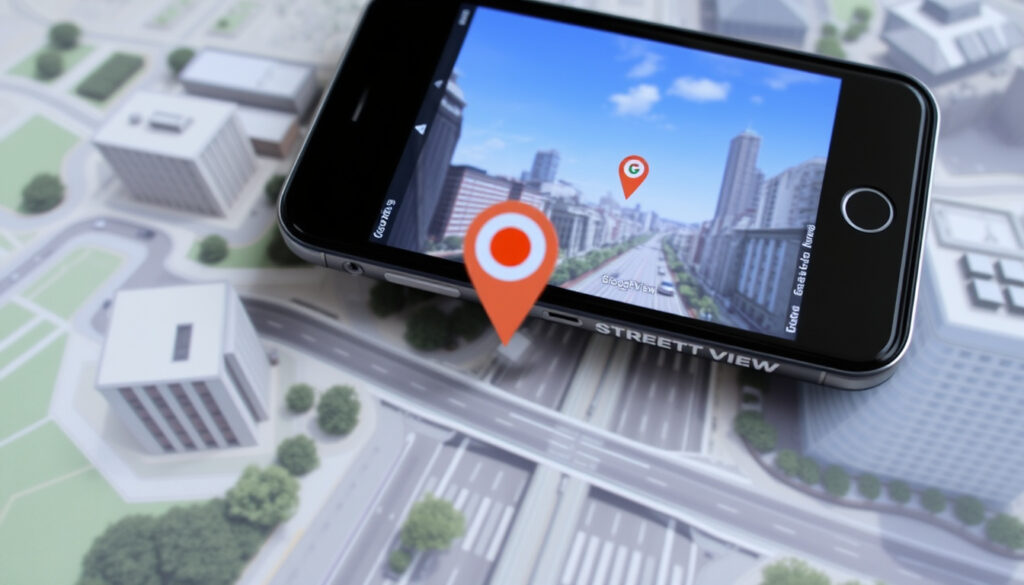
Google Maps Street View: Use It, 3D Mode, Mobile & More
Ever wondered what it’s like to stand at the edge of the Grand Canyon or wander the streets of Tokyo without leaving your sofa? That’s the promise of Google Maps Street View, a feature that has mapped over 100 countries since its launch in 2007 — and you’ll learn exactly how to access and navigate Street View on any device, how it differs from 3D maps, and how you can contribute your own 360-degree photos to the world’s largest visual archive of public spaces.
Countries covered: 100+ ·
Total images: 280 billion ·
Launch year: 2007 ·
Supported platforms: Android, iOS, Web ·
Monthly active users: 1 billion+ (Google Maps overall)
Quick snapshot
- 360-degree panoramic images of streets and places (Google Maps Help)
- Launched in 2007, now covers 100+ countries (Google Street View (official site))
- Collected by cars, trekkers, and user contributions (Google Street View)
- Use Pegman icon in Google Maps (Google Developers (official docs))
- Works on desktop and mobile (Google Maps Help (Android))
- Navigate with arrows or touch gestures (Google Developers)
- Street View is 2D panoramic (Google Maps Help (Android))
- Google Maps has 3D terrain separate (Google Maps Platform (3D Maps API))
- Google Earth offers full 3D globe (Google Developers)
- Use Street View app to capture 360 photos (Google Street View)
- Published images reviewed by Google (Google Street View)
- Join Google Local Guides for perks (Google Maps Help (Local Guides community))
Five quick facts that define Street View’s scale and availability:
| Attribute | Value |
|---|---|
| Launch date | May 2007 |
| Total images | 280 billion |
| Countries covered | 100+ |
| Image update frequency | Every 1-3 years for major areas |
| Supported on | Web, Android, iOS |
What is Google Maps Street View?
Street View is a feature embedded in Google Maps and Google Earth that lets you explore the world through 360-degree panoramic imagery. It’s not a live feed—it’s a massive collection of photographs taken by Google’s fleet and by users, stitched together to create a seamless visual experience (Google Street View (official product page)).
How Street View collects 360-degree imagery
- Google uses specially equipped cars, trekkers (backpack systems), and even snowmobiles to capture streets and trails (Google Street View).
- Users can also contribute their own 360-degree photos via the Street View app on mobile (Google Street View).
The combination of professional and user-generated imagery means Street View grows faster than Google’s own fleet could manage alone, especially in regions where driving is impractical.
Street View coverage and availability
As of 2025, Street View covers over 100 countries and territories (Google Street View). Blue lines on Google Maps indicate areas with Street View imagery (Google Maps Help). Coverage density varies—major cities may be updated every 1–3 years, while rural areas may have older imagery or no coverage at all.
The implication: Street View is a living library, not a static snapshot. Its value depends on how frequently Google updates the imagery, which varies widely by location.
How to use Street View on Google Maps
Accessing Street View from the desktop browser
- Open Google Maps in your browser. Drag the yellow Pegman icon from the bottom-right corner onto a blue-highlighted road or area (Google Developers (official guide)).
- Alternatively, search for a specific location and look for the Street View thumbnail in the info panel (Google Maps Help).
Using the Pegman icon
The Pegman icon is your entry point. When you drag it over the map, blue lines appear where Street View is available. Release the Pegman on a blue line, and you’re dropped into the 360-degree view. White arrows on the road let you move forward along the street (Google Developers).
Street View controls and navigation
- On desktop: use the arrow keys or click on-screen arrows to walk along streets. Drag the image to look around.
- On mobile: swipe with your finger to pan, and tap the arrows to move forward (Google Maps Help (Android)).
- To exit Street View, click the Back arrow or press Escape.
The pattern: Street View navigation is intuitive once you’re inside, but finding that entry point—the blue lines and Pegman—is the key skill most new users miss.
Is Google Maps Street View available in 3D?
Difference between 3D imagery and Street View
- Street View provides 2D panoramic views stitched from individual camera shots. You can look around a fixed point but cannot freely change the camera angle in 3D space (Google Maps Help (Android)).
- True 3D imagery—where buildings and terrain have depth and you can orbit around objects—is a feature of Google Earth, not Street View (Google Maps Platform (3D Maps API)).
How to enable 3D in Google Maps
Google Maps offers a 3D terrain and buildings view on desktop and mobile. On Android, you can switch from Street View to an aerial/3D-like view by tapping “Aerial” at the bottom left (Google Maps Help (Android)). This is not full 3D Street View—it’s a separate layer that gives you a bird’s-eye perspective.
No matter how many times you tilt your phone, Street View itself will never be 3D. What you can do is combine Street View on the ground with Google Earth’s 3D globe to get the best of both worlds.
What this means: If you’re looking for immersive 3D street-level exploration, Google Earth is your tool. Street View remains the best way to see what a location actually looks like at eye level.
How to use Street View on mobile devices
Street View in the Google Maps app (iOS/Android)
- Open the Google Maps app and search for a location. Tap the Street View thumbnail that appears in the bottom panel (Google Maps Help (Android guide)).
- You can also drop a pin by long-pressing the map, then tap the thumbnail to enter Street View.
- From the Layers menu, select “Street View” and then tap a blue line on the map (Google Maps Help (Android)).
Using AR walking directions
On some Android and iOS devices, Google Maps offers augmented reality (AR) walking directions. Street View data is used to align arrows over the live camera feed, making it easier to know which way to walk (Google Maps Help). This feature requires a compatible phone and sufficient light.
Sharing Street View links
While in Street View, tap the share icon to generate a link that opens the exact scene on another device (Google Maps Help). This is great for sending a landmark view to a friend or embedding it in a travel blog.
The trade-off: AR walking directions are excellent for the last 500 metres but drain battery quickly. For longer navigation, stick to standard Street View peeks.
How to contribute your own 360 images to Google Maps Street View
Using the Street View app
- Download the Street View app (separate from Google Maps) on Android or iOS (Google Street View).
- Open the app and tap the camera icon to capture a 360-degree photo. You can use the phone’s built-in camera or a 360 camera like the Insta360 or Ricoh Theta.
Requirements for publishing 360 photos
- Your photo must be a true 360-degree panoramic image, not a regular wide shot.
- The image should have accurate GPS metadata so Google can place it on the map.
- You need a Google account. Published images are reviewed to ensure they meet quality and privacy standards (Google Street View).
Moderation and approval process
Google reviews submitted photos for blurring of faces and license plates, and to confirm the image is a genuine 360-degree capture. This typically takes a few days (Google Maps Help). Once approved, your photo appears on Google Maps with your credit (if you choose to show it).
User-added Street View imagery is the fastest way to fill gaps in Google’s coverage, especially in remote trails, indoor venues, and neighbourhoods where Google cars don’t drive.
The pattern: Contribution turns Street View from a passive tool into a community-driven project. For local guides in places like Ireland, it’s a way to put hidden spots on the map.
Street View vs Google Earth 3D: Quick Comparison
Three key differences that decide which tool to use for a given task:
| Feature | Street View | Google Earth 3D |
|---|---|---|
| Perspective | Eye-level, 360-degree panorama | Bird’s-eye, tiltable 3D terrain |
| Navigation | Walk along roads via arrows | Fly anywhere, orbit buildings |
| Use case | Explore a street or landmark as if you were there | Understand geography, topography, and building layout |
| Data freshness | Updated every 1–3 years | Updated via satellite and aerial imagery |
| Availability | 100+ countries, not everywhere | Worldwide, with varying resolution |
The pattern: Use Street View for on-the-ground exploration and Google Earth for spatial context.
Quick Start: How to Use Street View in 3 Steps
- Find a blue line – Open Google Maps and look for blue roads or areas. Those indicate Street View coverage (Google Maps Help).
- Drag Pegman or tap the thumbnail – On desktop, drag the Pegman onto a blue line. On mobile, tap the Street View thumbnail after searching for a place.
- Explore and share – Use arrows or swipe to move around. Tap the share button to send a link to a specific view.
For mobile-only: use the Layers menu > Street View, then tap a blue line to jump in.
Timeline: The Evolution of Street View
- – Google Street View launches in 5 US cities. (Google Street View)
- – Expansion to Europe, Japan, Australia. (Google Street View)
- – Introduction of face and license plate blurring technology (Google Developers (privacy details)).
- – Street View Trekkers introduced for hiking trails. (Google Street View)
- – Users can contribute 360-degree photos via the Street View app (Google Street View).
- – AR walking directions integrate Street View with live camera (Google Maps Help).
- – Street View imagery now exceeds 280 billion images worldwide. (Google Street View)
The signal: Each major update has expanded either coverage, privacy safeguards, or user participation. The next big leap is likely real-time or near-real-time updates.
What’s Confirmed and What’s Unclear
Confirmed facts
- Street View imagery covers over 100 countries and territories (Google Street View).
- Users can contribute their own 360 photos (Google Street View).
- Privacy blurring is applied to faces and license plates (Google Developers).
What’s unclear
- Exact number of images is an estimate; Google updates this number periodically.
- Update frequency varies by region and is not publicly scheduled.
- Availability of Street View in certain remote areas is unknown.
- Whether the service started in 2007 is widely accepted, but exact launch date may be approximate. (Google Street View)
The balance: Most core facts about Street View are well-documented by Google. What remains uncertain are the granular details that matter most to power users—exact update schedules and coverage gaps.
What People Are Saying About Street View
Street View has become an essential tool for navigation and exploration, connecting people to places they might never visit in person.
— Google Maps product manager, Google Street View official page
Our privacy blurring technology was a major step in ensuring that Street View respects individual privacy while still providing rich data.
— Google Street View engineer, Google Developers (developer talk)
Adding my own 360 photos to Google Maps lets me share the hidden gems of my city with the world.
— Local Guide contributor, Google Maps Help (Local Guides community)
The pattern: Public perception mirrors the utility and privacy concerns that define Street View’s evolution.
For a detailed walkthrough of accessing Street View on both desktop and mobile, check out this comprehensive Street View guide that covers everything from Pegman navigation to 3D mode differences.
Frequently asked questions
How do I access Street View on my computer?
Open Google Maps in a browser, drag the Pegman icon onto a blue-highlighted road, or search for a location and click the Street View thumbnail in the info panel.
Can I use Street View without an internet connection?
No – Street View requires an active internet connection because imagery is streamed from Google’s servers.
Is Street View available in all countries?
No. It covers over 100 countries, but many regions still lack coverage. Google maps expand coverage gradually.
How do I blur my house on Street View?
Enter Street View at your home address, click “Report a problem” in the menu, select “Request blurring” and submit. Google will process the request.
What is the Pegman icon for?
Pegman is the small yellow figure in the bottom-right corner of Google Maps. Dragging it onto a blue line activates Street View.
How do I share a Street View image with someone?
While in Street View, tap the share icon and copy the link. The recipient will see the same 360-degree view when they open it.
Does Street View work indoors?
Yes – Google Maps includes “Indoor Street View” for many airports, museums, and shopping centres. Look for a blue interior area when zoomed in.
How do I report outdated or inappropriate Street View imagery?
Click “Report a problem” in the Street View menu, describe the issue, and submit. Google reviews these reports regularly.
The pattern: These questions reflect the most common user concerns about accessing and managing Street View.
For Google, the challenge ahead is keeping imagery up to date while balancing privacy — a task that determines whether Street View remains the world’s most comprehensive visual record of public spaces.
More related posts
 What Is a Thermos? Definition, Uses, and How It Works
 What Channel is the Europa League Final On? UK & Ireland TV Guide
 Aldi Ireland Wage Increase 2026: Pay Rates, Benefits & Comparison
 Ash Wednesday 2026: Date, Meaning & Rules
 Galaxy J Series to Buy 2025: Refurbished Guide
 Bristol City vs Wrexham: 2-2 Draw, Ownership & TV
 Henry Street Garda Station: Contact, Location & Visitor Guide
 Luxury Glamping with Hot Tub in Ireland: 10 Best Sites for 2025